video
Excel: DATE & EDATE Functions
This video tutorial talks about the DATE and EDATE Function in Excel.
Microsoft Excel has a variety of features instilled in it, and one of the most commonly used features among them is the Date and Time function. Both of these features allow you to return the serial number of a particular date and time.
The DATE function in Excel creates a valid date from individual year, month, and day components and is useful for assembling dates that need to change dynamically based on other values in a worksheet.
Whereas, the TIME function is a built-in function that allows you to create a time with individual hour, minute, and second components. It is useful when you want to assemble a proper time inside another formula.
In this collection page, we will look at all the Excel formulas for Date and Time functions including EDATE, YEARFRAC, TIME FORMAT, DATEDIF, NETWORKDAYS, WEEKNUM, etc.
Not only that, you will also learn how you can use these formulas in real life through the help of various video tutorials. So continue reading!
The DATE function in Excel returns the sequential serial number that represents a particular date. Excel interprets the year argument according to the date system your computer is using.
Apply a date number format to display the output from the DATE function as a date. In general, the DATE function is the safest way to create a date in an Excel formula, because year, month, and day values are numeric and unambiguous, in contrast to text representations of dates which can be misinterpreted.
The EDATE function in Excel returns a date on the same day of the month, and 'n' months in the past or future. You can use EDATE to calculate expiration dates, maturity dates, and other due dates.
Use a positive value for months to get a date in the future, and a negative value for dates in the past. EDATE will return a serial number corresponding to a date. To display the result as a date, apply a number format of your choice.
The DAY function in Excel returns the day of the month as a number between 1 to 31 from a given date. You can use the DAY function to extract a day number from a date into a cell.
You can also use the DAY function to extract and feed a day value into another function, like the DATE function. You can use the DAY function to extract a day number from a date into a cell.
The DAY function can be used to extract and feed a day value into another function, like the DATE function.
The MONTH function in Excel extracts the month from a given date as a number between 1 to 12. You can use the MONTH function to extract a month number from a date into a cell, or to feed a month number into another function like the DATE function.
For example, given the date August 15, 2021", the MONTH function will return 8 for August. MONTH takes just one argument, serial number, which must be a valid Excel date.
The YEAR function returns the year component of a date as a 4-digit number. You can use the YEAR function to extract a year number from a date into a cell or to extract and feed a year value into another formula, like the DATE function.
The YEAR function is an Excel Date/Time function. The function will return an integer that is a four-digit year corresponding to a specified date. For example, if we use this function on a date such as 25/12/2020, it will return 2020,
The TODAY function returns the current date, updated continuously when a worksheet is changed or opened. The TODAY function takes no arguments. You can format the value returned by TODAY with a date number format. If you need the current date and time, use the NOW function.
The DAYS function in Excel returns the number of days between two dates. With a start date in A9 and end date in 89,-DAYS(B9A9) will return the days between the two dates. Both dates must be valid Excel dates or text values that can be parsed as dates.
The DAYS function only works with whole numbers, fractional time values are ignored. If start and end dates are reversed, DAYS returns a negative number.
The DAYS360 function in Excel returns the number of days between two dates based on a 360-day year, where all months are assumed to have 30 days. Both dates must be valid Excel dates or text values that can be parsed as dates.
The DAYS360 function only works with whole numbers, time values are ignored. DAYS360 takes an optional argument called method that can be set to either TRUE or FALSE.
When the method is FALSE (default) DAYS360 uses a US method to compute days. When the start date is the last day of the month, it is treated like the 30th day of that month. When the end date is the last day of the month, and the start date is less than 30, the end date is treated as the 1st of the next month, otherwise the end date is treated like the 30th of the same month.
If the method is set to TRUE, DAYS360 uses a European method to calculate days. In this scheme, start and end dates equal to the 31st of a month are set to the 30th of the same month.
The YEARFRAC function in Excel returns a decimal value that represents fractional years between two dates You can use YEARFRAC to do things like calculate age with a birthdate. Excel uses whole days between two dates to work out the fraction of a year as a decimal value.
The YEARFRAC function has an optional argument called "basis" that controls how days are counted when computing fractional years. The default behaviour is to count days between two dates based on a 360-day year, where all 12 months are considered to have 30 days.
The EOMONTH function in excel returns the last day of the month or months in the past or future. You can use EDATE to calculate expiration dates, due dates, and other dates that need to land on the last day of a month.
Use a positive value for months to move forward in time, and a negative number to move back in time. You can use EOMONTH to calculate expiration dates, due dates, and other dates that need to land on the last day of a month.
The EOMONTH function takes two arguments: start date and months. Start date must be a valid Excel date. The months argument specifies how many months in the future or past to move-use a positive number to move forward in time, and a negative number to move back in time.
The WEEKNUM function in excel takes a date and returns a week number that corresponds to the week of year. The WEEKNUM function starts counting on the week that contains January 1. By default, weeks begin on Sunday, but this can be changed.
The WEEKNUM function accepts two arguments, senal_num and return type. The serial num argument must have a valid Excel date. The return type argument controls what day of the week begins a new week number.
The WEEKDAY function takes a date and returns a number between 17 representing the day of week. By default, WEEKDAY returns 1 for Sunday and 7 for Saturday, but this is configurable. You can use the WEEKDAY function inside other formulas to check the day of week.
The WEEKDAY function takes two arguments: serial number and return_type. Serial number should be a valid Excel date in serial number format. Return type is an optional numeric code that controls which day of the week is considered the first day.
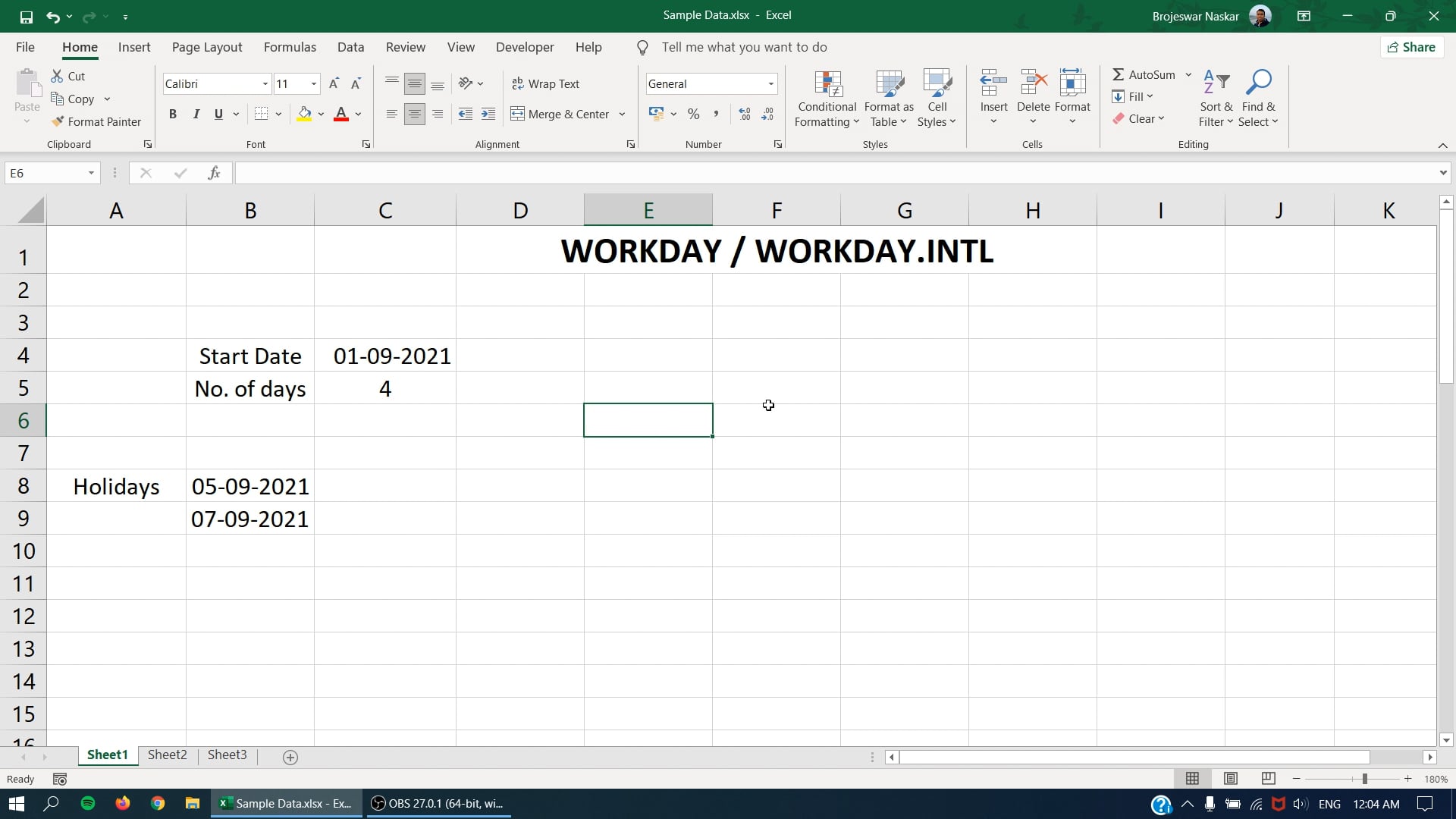
The WORKDAY function in Excel takes a date and returns the nearest working day and days in the future or past. You can use the WORKDAY function to calculate things like ship dates, delivery dates, and completion dates that need to take into account working and non-working days.
The WORKDAY function takes three arguments: start date, days, and holidays. Start date must be a valid Excel date. The days argument is the number of days in the future or past to calculate a workday. Use a positive number for days to calculate future dates, and a negative number for past dates.
Holidays is an optional argument to specify non-working days. Holidays should be provided as a range that contains valid Excel dates. If holidays are not provided, WORKDAY will treat only Saturdays and Sundays as non working days
The WORKDAY INTL function in Excel takes a date and returns the nearest working days in the future or past, based on an offset value you provide. Unlike the WORKDAY function, WORKDAY INTL allows you to customize which days are considered weekends.
You can use the WORKDAY INTL function to calculate completion dates, ship dates, etc. that takes into account non-working days. The WORKDAY INTL function takes four arguments: start date, days, weekend, and holidays. Start date must be a valid Excel date.
The days argument is the number of days in the future or past to move from start date, taking into account non working days.
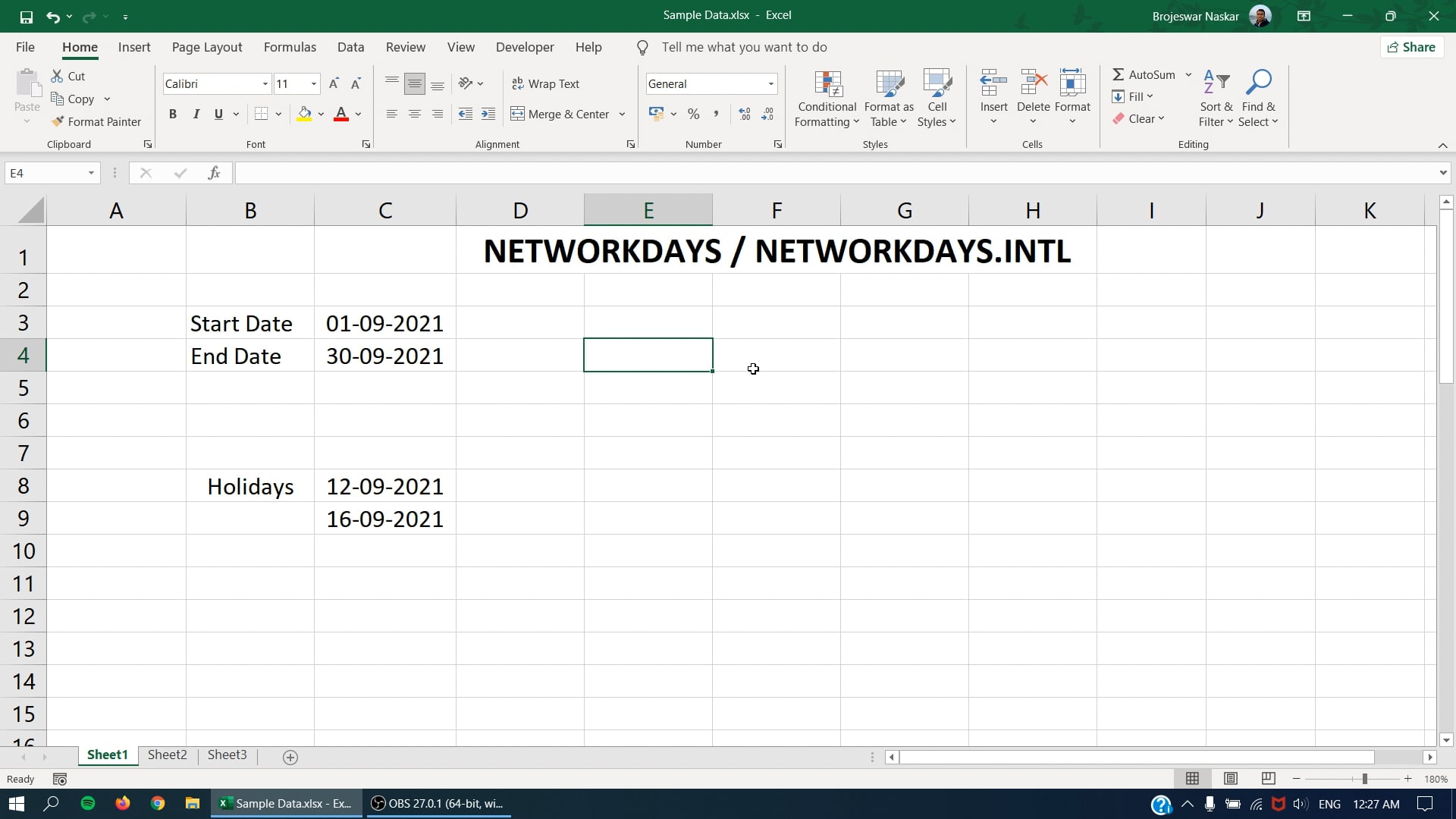
The NETWORKDAYS function in Excel calculates the number of working days between two dates NETWORKDAYS automatically excludes weekends (Saturday and Sunday) and can optionally exclude a list of holidays supplied as dates.
NETWORKDAYS can be used to calculate employee benefits that accrue based on days worked; the number of working days available during a project, the number of working days required to resolve a customer support issue, etc.
NETWORKDAYS takes three arguments: start date, end date, and holidays. All three arguments must be valid Excel dates. Holidays are optional. To exclude holidays, provide a range of valid Excel dates for the holidays argument. Holidays are treated as non-working days and will not be included in the result.
NETWORKDAYS includes both the start date and end date when calculating workdays. If you give NETWORKDAYS the same date for start date and end date, and the date is not a weekend or holiday, it will return 1.
The NETWORKDAYS INTL function in Excel calculates the number of working days between two dates.
NETWORKDAYS INTL can optionally exclude a list of holidays and provides a way to specify which days of the week are considered weekends. This function is more robust than the NETWORKDAYS function because it allows you to control which days of the week are considered weekends.
NETWORKDAYS INTL takes four arguments: start date, end date, weekend, and holidays. The start date, end date and holidays arguments must be valid Excel dates. The weekend argument controls which days of the week are considered weekends, and therefore not included in the count. Holidays are also treated as non-working days and will not be included in the result.
The DATEVALUE function in Excel converts a date represented as a text string into a valid Excel date. Proper Excel dates are more useful than text dates since they can be directly manipulated with formulas and pivot tables.
The DATEVALUE function is meant to convert a date represented as a text string into a valid Excel date. Proper Excel dates are more useful than text dates since they can be formatted as a date, and directly manipulated with other formulas.
DATEVALUE function takes just one argument, called date text. If date text is a cell address, the value of the coll must be text. If date text is entered directly into the formula it must be enclosed in quotes (").
The TIMEVALUE function in Excel converts a time represented as text into a proper Excel time.
Sometimes, the time in Excel appears as text value that is not recognized properly as time. The TIMEVALUE function is meant to parse a time that appears as a text value into a valid Excel time. A native Excel time is more useful than text because it is a numeric value that can be formatted as time and directly manipulated in a formula.
The TIMEVALUE function creates a time in serial number format from a date and time in an Excel text format. Because TIMEVALUE is less than 1, hours will reset every 24 hours (like a clock). It takes just one argument, called time_text. If time_text is a cell address, the value in the cell must be text. If time text is entered directly into the formula it must be enclosed in double quotes ("").
The TIME function creates a valid Excel time based with supplied values for hour, minute, and second. Like all Excel time, the result is a number that represents a fractional day. The TIME function will only return time values up to one full day.
The decimal number returned by TIME is a value ranging from 0 (zero) to 0.99988426, representing the times from 0:00:00 (12:00:00 AM) to 23:59:59 (11:59:59 PM.).
To see results formatted as time, apply a time-based number format. In this way, TIME behaves like a 24 hour clock that resets when it crosses midnight.
The NOW function in excel returns the current date and time, updated continuously when a worksheet is changed or opened. You can format the value returned by NOW as a date, or as a date with time by applying a number format.
The NOW function takes no arguments. NOW takes no parameters but requires empty parentheses. The value returned by NOW will continually update each time the worksheet is updated. For example, each time a value is entered or changed, use F9 to force the worksheet to recalculate and update the value.
The HOUR function in Excel returns the hour component of a time as a number between 0-23. For example, with a time of 8:45 AM, HOUR will return B. You can use the HOUR function to extract the hour into a coll. The HOUR function will "reset" to 0 every 24 hours (like a clock). To work with hour values larger than 24, use a formula to convert time to decimal hours.
The MINUTE function in Excel extracts the minute component of a time as a number between 0-59. For example, with a time of 9:38 AM, minutes will return 38.
You can use the MINUTE function to extract the minute into a cell. The MINUTE function will "reset to 0 every 60 minutes (like a clock). To work with minute values larger than 60, use a formula to convert time to decimal minutes.
The SECOND function in Excel returns the second component of a time as a number between 0-59. For example, with a time of 7:22:49 AM, the second will return 49. You can use the SECOND function to extract the second into a cell. To work with seconds values larger than 50, use a formula to convert time to decimal seconds.
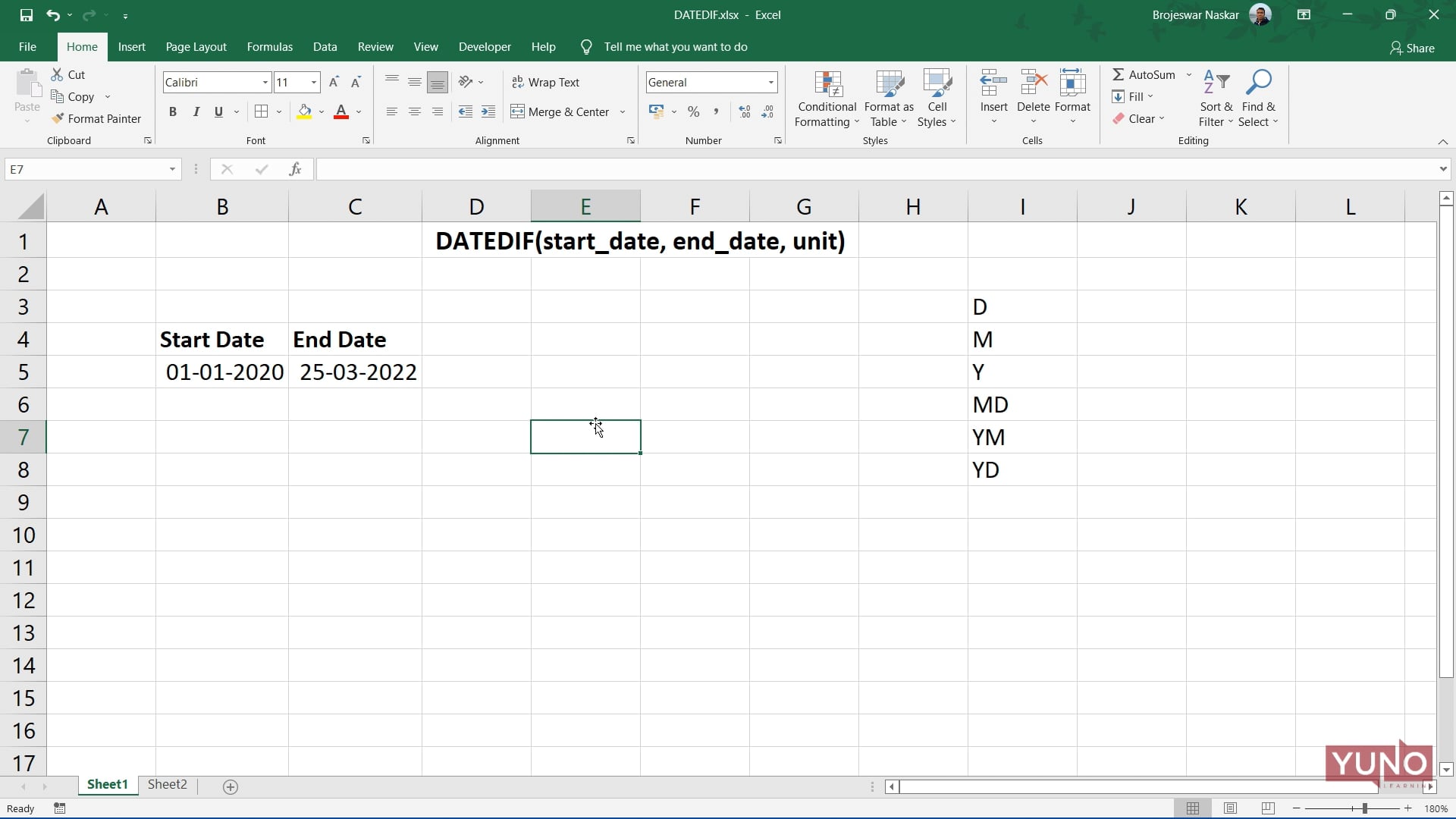
The DATEDIF Function in Excel returns the difference between two date values in years, months, or days. It is a "compatibility" function that comes from Lotus 1-2-3.
For reasons unknown, it is only documented in Excel 2000, but you can use it in your formulas in all Excel versions since that time. Excel won't help you fill out the arguments for DATEDIF like other functions, but it will work when configured correctly.
The DATEDIF Function can calculate the time between a start_date and an end_date in years, months, or days. The time unit is specified with the unit argument, which is supplied as text. The table below summarises available unit values and the result for each.
To learn more about advanced excel topics, login to www.yunolearning.com. We also offer courses in Spoken English, Business Writing and IELTS preparation. Send us your inquiries at maya@yunolearning.com or call at +91-8847251466.