Getting Started: How Yuno Works
What is Yuno Learning?
Yuno Learning is a platform that helps connect instructors and learners throughout the globe. We provide learners the luxury to learn from home and instructors the flexibility to work from home.
We also make sure that instructors are provided with all the necessary resources such as lesson slides, practice questions and other teaching material so that their entire focus is on doing what they love, which is teaching.
What do you need to teach at Yuno?
A quiet room: Deliver your classes in a quiet room. Set your routine to make sure that there are no interruptions and background noise.
A fast computer: Use a fast and reliable laptop or desktop. You should have both a good quality camera and a microphone. Delivering classes from mobile or tablet is strictly prohibited.
Fixed-line WIFI connection: Ensure that you deliver the classes through a fixed-line broadband connection, available to you through a wire or Wifi for uninterrupted teaching experience. Delivering classes through your phone’s hotspot is allowed ONLY in rare cases such as when you’ve run out of backup power (see below) or if the internet lines are down due to inclement weather. You need to inform Yuno staff in advance.
Inverter or power backup device: A power backup for your device and Wifi that allows for uninterrupted access is required. Your power backup is useful ONLY if it allows you to deliver classes without ANY interruption. For e.g. in the event of power failure, if your PC or WiFi shuts down even for a few seconds, it cannot be considered as an uninterrupted source of power backup. There are many inexpensive products available in the market that provide uninterrupted power, if you need to make a purchase. You can contact Yuno staff for details.
Here are some of the products on Amazon that you can look at for Wi-Fi power backup:
4G hotspot: Ensure a 4G hotspot to compensate for WiFi failure or network issues. As mentioned earlier, teaching classes through mobile hotspot will ONLY be allowed in rare cases.
Video ON for classes: It’s mandatory to always have video ON for your classes.
Proper lighting: A good lighting is also essential to make your classes more interactive and to give it a professional appearance.
Creating your Account
You need to sign up as an instructor on our website to start teaching with us. To create the account follow below steps:
- Create a new gmail id for Yuno such as: [email protected]
- After creating a new gmail id, click here: Become an Instructor
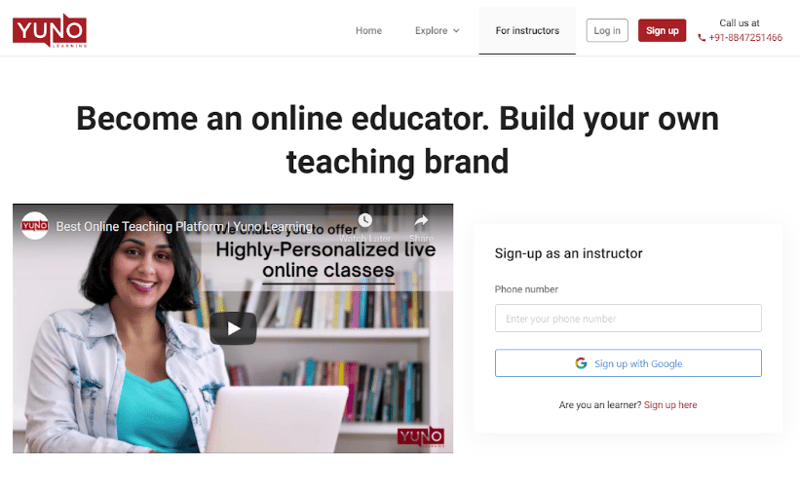
- Enter your mobile number and click “Sign up with Google”.
- Use your new gmail id to fill up the sign up form.
- Once you finish signing up, you’ll receive a Zoom account Activation email on the same id.
- Click on “Sign in with Google” to activate your Zoom account.
- Our support team will be in touch with you the entire time to guide and help you create your account.
Getting familiar with Yuno Learning website
The Instructor interface has five main tabs: Home, My Courses, People, Insights and Explore.
Home
When you log in to your Yuno Instructor Account you are on the Home screen.
The Home screen has two submenus, Upcoming and Ongoing, Past.
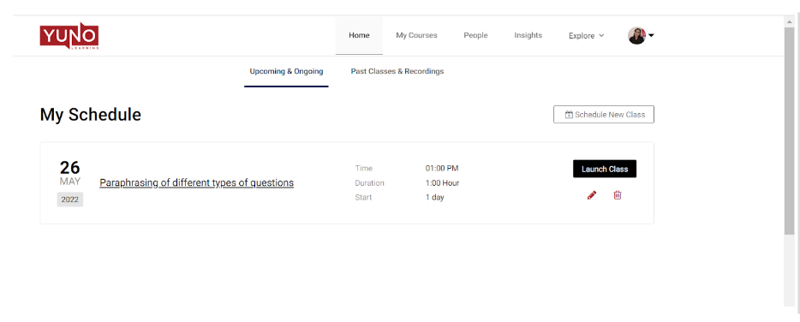
Upcoming and Ongoing displays classes that are about to happen or already happening.
Past option displays the list of all classes you have already taken.
Besides this, the Home screen also helps you to schedule a new class by clicking on the Schedule New Class button. Additionally, you can edit or delete an already scheduled class.
To know how to Schedule, Edit or Delete a class click here.
My Courses
My Courses screen displays all the courses you are taking along with their brief descriptions.

To view batches in a particular course you can click View Batches. A sub screen will appear that shows Upcoming & Ongoing and Past batches.
People
The People tab helps you to manage your learners or students.
It has two submenus, All and Groups

Under All you can find the names, email ids and phone numbers of all of your learners (in case you want to get in touch with them).
Under Groups, you’ll find all the batches that are allocated to you. A group is basically a collection of students who’ll be taking up a particular course from you.
You can also create a new group of students according to their needs, levels or your preferences by clicking on New Group. For instance, you may want to create a separate group for weaker students belonging to different batches who want to understand a specific topic.

To know how to create, edit or delete a Group(s) click here.
Insights
The Insights tab provides instructors with important data metrics so they can self-govern the quality of teaching.
Within the Insights tab, you’ll see 3 different tabs – Overview, Enrollments and Reviews.

Each tab is tailored to help you see the data that’s most relevant to accomplish your teaching goals. The Overview tab shows you some important metrics that reflect on the quality of your teaching. We have carefully selected these metrics.
You’ll see 5 key data metrics: Active Enrollments, Completed Enrollments, Classes Delivered, Reviews and Attendance. You’ll also see Goals Achieved and Ratings & Reviews.
In the Enrollments tab, you’ll see the batch details of all of your Active Learners. You can use various filter options to filter out the records you want to view.
Reviews tab contains all the reviews given by your learners.
Explore
The Explore tab gives you access to educational material in the form of videos, articles, worksheets and practice tests. You can refer to these resources to enhance your subject knowledge even further.

View Profile
You can view your profile by clicking on your profile image and selecting My Profile.

Filling Availability hours
You can also add or modify your availability hours. Click on your profile picture and select settings. Click on the Availability tab to fill your hours of availability and we’ll assign you new batches accordingly.
Logging out
To log out click on your profile image and click Logout at the bottom of the menu that appears.
Yuno Learner Account
A Yuno Leaner account consists of only 2 tabs: Home and Explore.

Home
Home screen has two submenus, Upcoming and Ongoing & Past.
Upcoming and Ongoing displays the list of upcoming classes that have been scheduled by the instructors.
To attend a class, the learner clicks on the “Launch class” button and will be directed to the virtual classroom where class will take place.
Past option displays the list of recordings of all the classes the learner has already attended.
Explore
Using the Explore tab, learners can browse through various courses and educational resources. These learning resources could be practice quizzes, engaging videos, ebooks and informative articles. Our content marketing team works with freelancers around the country to publish tens of new pieces of content each week.