Academy Owners Guide to Using Yuno Learning
Introduction
Yuno Learning is a powerful platform designed to help academy owners manage and scale their institutions effortlessly. With intuitive tools for creating and managing courses, enrolling learners, tracking class performance, and analyzing insights, Yuno Learning provides everything you need to run your academy efficiently. Whether you’re managing a small group of learners or a large institution, Yuno Learning gives you the flexibility and control to optimize your operations and ensure a great learning experience for your students., this guide will show you how to leverage Yuno Learning to its full potential.
Administrator Account
As an Administrator (Org Admin), you have complete control over your academy’s operations on Yuno Learning. This role is essential for managing your academy’s growth, overseeing instructors and learners, and ensuring everything runs smoothly.
Key Responsibilities:
- Create and Publish Courses: You can easily create new courses, define course structures, and schedule batches. You have full flexibility in course management to meet your academy’s needs.
- Invite and Manage Instructors: Admins can invite instructors to teach courses, assign them specific batches, and manage their roles. You ensure instructors have the tools and content they need to teach effectively.
- Enroll Learners: Admins can enroll students in courses and manage learner registrations.
- Monitor Class Insights: Track attendance, view performance analytics, and assess learner engagement with detailed class insights.
- Create and Use Content: Admins can create their own learning materials or use publicly available content on Yuno to enrich courses.
Instructor Account
An instructor account is designed for educators who will be delivering classes, creating content, and engaging with learners. Instructors have access to tools that allow them to schedule, teach, and manage their courses effectively.
Key Responsibilities:
- Create and Deliver Classes: Instructors can schedule live classes, prepare course materials, and deliver lessons to their learners..
- Browse Public Content: Instructors have access to a library of publicly available content on Yuno, enabling them to enrich their courses with additional materials.
- Track Learner Progress: View attendance, track student performance, and provide valuable feedback to learners to improve their academic experience.
- Engage with Learners: Instructors can interact with students through messages, Q&A sessions, and feedback to ensure learners remain engaged and supported.
Learner Account
A Learner account is tailored to students who wish to explore and enroll in courses, attend live or recorded sessions, and track their educational progress.
Key Responsibilities:
- Discover and Enroll in Courses: Learners can browse a wide range of available courses, select topics of interest, and enroll in them at any time.
- Attend Classes: Learners can attend live sessions scheduled by their instructors or access recorded classes, making learning flexible and accessible.
- Access Learning Content: Students can browse and use content available on Yuno, including videos, assignments, quizzes, and other learning resources.
- Track Learning Progress: Learners can monitor their progress through course milestones, track completed assignments, and receive grades or certificates upon course completion.
- Engage with Instructors: Learners can communicate directly with their instructors, ask questions, and participate in course discussions to enrich their learning experience.
Creating and Editing a Course on Yuno Learning
What is a Course on Yuno Learning?
A course on Yuno Learning is a well-structured educational product designed to offer learners a defined learning experience. Each course is built around specific learning objectives, a unique curriculum, and a roster of qualified instructors. Courses can be delivered in various formats, such as group classes, 1-on-1 sessions, or both, providing flexibility to suit different learning styles.
Additionally, each course is associated with its own price and relevant details, including the start and end dates, which are managed through individual batches. Batches allow administrators to offer multiple sessions of the same course with different schedules to accommodate various learners.
Who Can Create and Edit a Course?
Only organization administrators can create, manage, and edit courses within Yuno Learning. If you’re an individual managing your own academy (i.e., you’re the administrator of your organization), you’ll need an instructor account to teach the courses you create. The instructor account is free, so there’s no additional charge for setting up your academy or creating and teaching courses.
However, if you plan to add more instructors to teach within your academy, you will need to subscribe to our premium service to provide additional instructor accounts.
Key Features of Courses on Yuno Learning:
- Curriculum Structure: Each course is divided into modules or lessons, which can include a mix of video lectures, assignments, quizzes, and reading materials.
- Learning Objectives: Clearly defined goals that describe what students will learn or achieve by the end of the course.
- Instructor(s): A list of instructors qualified to teach the course, with their respective details and profiles.
- Delivery Formats: Choose between group classes, one-on-one tutoring sessions, or both to meet the diverse learning needs of your students.
- Pricing: Set the price for your course, including different rates for group and individual sessions if applicable.
- Batches: Courses are further divided into batches, each with a distinct start and end date. This allows for flexible scheduling and the option to offer multiple sessions of the same course.
How to Use the Demo Requests Panel
As an Org Admin on Yuno Learning, you can view and manage demo class requests submitted by learners from your organization. The Demo Requests panel provides a comprehensive overview of learner interest and helps you assign them to relevant batches or instructors.
Accessing the Demo Requests Section
- Login to your Org Admin account.
- From the left sidebar menu, click on Demo Requests under the Manage section.
Overview of the Panel
You’ll see a list of all learners who have submitted a demo request. A summary card is shown for each learner on the left with their name, date and time of request. Clicking a learner displays their detailed profile and demo interest on the right side. Total Demo Requests and Total Unique Learners who submitted are shown at the top (e.g., “14 demo requests by 14 learners”).
Learner Information Displayed
Field Name | Description |
| Name | Full name and profile image of the learner. |
| Email ID | Learner’s registered email address. |
| Phone Number | Contact number provided during sign-up. |
| WhatsApp Opt-in | Indicates if the learner has opted in for WhatsApp notifications. |
| Last Login | Indicates if the learner has opted in for WhatsApp notifications. |
| Signed Up | Date the learner registered on Yuno. |
| Time of Study | Preferred time of day for attending classes (e.g., Morning, Evening). |
Demo Request Details
Each learner may have one or multiple demo requests depending on the categories offered (e.g., English Speaking, IELTS). Common Fields are:
| Field | Description |
| Category | The type of course the learner requested a demo for (e.g., English Speaking). |
| Request Date | Date when the learner submitted this specific demo request. |
| Course | Selected course name if any (can be N/A if not selected). |
| Current Level of English | Learner’s self-assessed proficiency (e.g., Beginner, Intermediate, Advanced). |
| Reason to Learn | Learner’s motivation behind taking this course (e.g., Job, Study, Other). |
| Best Describes You | A tag defining the learner type (e.g. Working Professional, Student). |
| Dream Countries | Countries the learner aspires to study in. |
Available Filters in demo request insight
You can filter demo requests using the dropdowns at the top of the panel:
| Filter Name | Purpose |
| Category | Filter requests by course category (e.g., IELTS, Spoken English). |
| Info Available | See requests where key info is available or missing. |
| Demo Request Period | Filter by when the request was submitted (e.g., Last 7 days). |
| Time of Study | Filter based on the learner’s preferred study timing. |
Email Notification to Org Admin
When a learner submits a demo request on the Yuno Learning platform, the Org Admin also receives an automated email alert with the request details.
Email Format:
Subject Line: You’ve got a new demo request on Yuno Learning
Sender: [email protected]
Recipient: Org Admin’s registered email ID
Email Content Includes:
Field | Description |
| Learner Name | Full name of the learner who submitted the demo request. |
| Email ID | Learner’s registered email address. |
| Phone Number | Learner’s contact number. |
| Category | Category of the requested demo (e.g., English Speaking). |
| Course ID | ID of the selected course (can be numeric or N/A). |
| Dream Country | for Study Abroad demos, learner’s preferred countries. |
| Target Score | Target score (if applicable, mostly for test prep courses). |
| Learner Photo | A small profile image (if uploaded by the learner). |
| Open in Yuno | A button that redirects directly to the learner’s profile in the admin panel. |
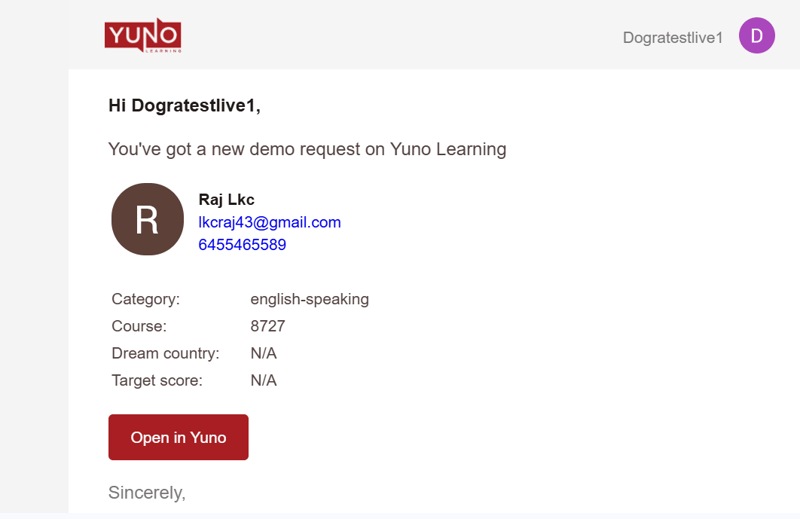
This notification helps ensure prompt follow-up and allows admins to act on fresh leads immediately.
How to Use Upcoming and Past Class Insights
As an Org Admin on Yuno Learning, you can access detailed insights for Upcoming/Ongoing and Past Classes directly from your dashboard. This guide walks you through how to utilize both tabs efficiently to manage and monitor classes in your organization.
Accessing the Classes Section
- Login to your Org Admin account.
- On the left navigation menu, click Classes.
- You’ll see two main tabs:
- Upcoming Ongoing
- Past
Upcoming/Ongoing Tab
This section shows all the scheduled future classes and those that are currently live.
Key Use Cases:
- Monitoring today’s or upcoming sessions
- Checking instructor schedules
- Tracking enrollments and participation levels
- Reviewing class timings, durations, and courses
Field-wise Data Explanation:
Field Name | Type of Data Displayed |
| Title | Name of the class/session. This often includes session type + topic + instructor name. |
| Instructor | Instructor’s full name with avatar image. |
| Schedule Start | Scheduled date of the class (as per the class schedule). |
| Actual Start | Timestamp when the class actually began. |
| Meeting ID | Unique video meeting ID for Zoom/Google Meet. |
| Time | Class start time (e.g., 05:30 PM). |
| Duration | Duration of the class (e.g., 30 Minutes, 1 Hour). |
| Enrollments | Number of learners enrolled in that session. |
| Courses | Name of the course this class is linked to. |
Use this section to prepare reminders for learners and instructors or troubleshoot no-show issues.
Past class Tab
This section provides historical data for all completed classes.
Key Use Cases:
- Class recordings
- attendance data
- Analyzing learner and staff ratings
- Identifying low-engagement courses
Field-wise Data Explanation:
| Field Name | Type of Data Displayed |
| Duration | Duration of the completed class (e.g., 1 Hour or 0 Hour if not recorded). |
| Enrollments | Number of students who enrolled in the session. |
| Attended | Actual number of learners who attended the session. |
| Avg. Learner Rating | Average feedback score given by learners after the session (if feedback was submitted). |
| Avg. Staff Rating | Admin/staff-provided rating for the session/instructor. |
| Attendance | Visual and numeric representation of the attendance percentage. |
| Courses | Course title associated with the session. |
| Recording | Indicator whether a class recording is available |
| Actions | Options to view more details, edit, or export data. |
Use this data to evaluate instructor performance, learner engagement, Class recordings, and session effectiveness.
Filters Overview
Filters help you narrow down class insights based on multiple dimensions. Here’s a consolidated view of all available filters and their tab-wise availability:
| Filter Name | Purpose | Available In |
| Month | Filter classes based on the month. | Upcoming/Ongoing, Past |
| Select Academy | Choose an academy if you manage multiple academies. | Upcoming/Ongoing, Past |
| Select Category | Filter based on course category. | Upcoming/Ongoing, Past |
| Class Duration | Filter sessions by duration (e.g., 30 min, 1 hour). | Upcoming/Ongoing, Past |
| Search Courses | Enter course name keywords | Upcoming/Ongoing, Past |
| Search Instructors | Find sessions by a specific instructor. | Upcoming/Ongoing, Past |
| Search Learners | Find sessions where a specific learner is enrolled. | Upcoming/Ongoing, Past |
| Search (Free Text) | Generic keyword search across titles or descriptions. | Upcoming/Ongoing, Past |
| Attendance | Sort or filter classes by attendance percentage. | past only |
Tips for Org Admins
- Regularly check the Upcoming/Ongoing tab to ensure session readiness.
- Use the Past tab insights for monthly reporting and performance reviews.
- Cross-check Enrollments vs Attendance to gauge engagement drop-off.
- Encourage instructors to improve based on learner feedback & attendance data.
How to Use Learner Insights
The Learners section in the Yuno Learning admin panel provides comprehensive insights into learners associated with the currently logged-in organization account. This allows organizations to effectively monitor and manage their own users’ activity, engagement, and preferences within the platform.
Navigation
To access learner insights:
- Log in to the Yuno admin portal using your organization credentials.
- From the left-hand menu, click on Learners under the Manage section.
At the top of the Learners page, you can filter users using the following dropdowns:
- Time of Study: Filter learners by their preferred study time (morning, afternoon, evening, or night).
- WhatsApp: Filter learners based on whether they have WhatsApp connected.
- Org Created Time: Sort learners by the date and time they joined the organization.
- These filters allow you to focus on specific segments of your learner base efficiently.
Key Data Points
Each learner listed is tied to your organization account and includes the following information:
Field | Description |
| Learner | Name or alias of the learner |
| Registered email ID | |
| Phone | Contact number provided by the learner |
| Time Of Study | Learner’s preferred study period |
| Shows if WhatsApp is linked | |
| Org Created Time | When the learner was added to your organization |
| Last Login Time | Most recent login to the Yuno platform |
| Location Info | Country, state, and city if available (currently may not be filled) |
Pro Tips
- Click the refresh icon to update the list with the latest learner data.
- Use a combination of filters (e.g., afternoon + WhatsApp) to drill down into more specific learner groups.
- Check other tabs like Enrollments and Attendance for a full picture of learner activity.
Courses Management
A. All Courses
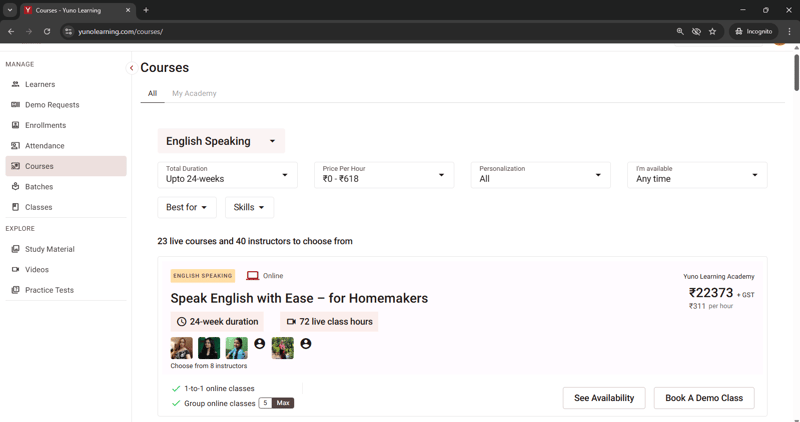
This section displays the entire catalog of courses available on Yuno Learning’s platform, across all academies. You can use this to browse, filter, and suggest courses to learners even if they aren’t created within your academy.
How to Access:
Go to Courses from the left-side menu and Click on the All tab.
Features & Filters
| Feature | Purpose |
|---|---|
| Category | Filter by course category (e.g., English Speaking, Interview Prep) |
| Total Duration | Filter by duration (e.g., Up to 24 weeks) |
| Price Per Hour | Set hourly price range filters |
| Personalization | Choose between all courses or personalized ones |
| I’m Available | Filter by your preferred time slot availability |
| Best for / Skills | Refine courses based on learner goals or skill areas |
Course Card Highlights
- Course Category, Duration, Class Hours
- Instructor options with thumbnails
- Pricing per hour and total fee
- Availability for 1-to-1 or Group classes
Key Uses:
- Recommend suitable external courses to learners.
- Compare offerings from other academies.
- View pricing trends and design your own courses competitively.
- Use for demo scheduling across different academies.
B. My Academy Courses
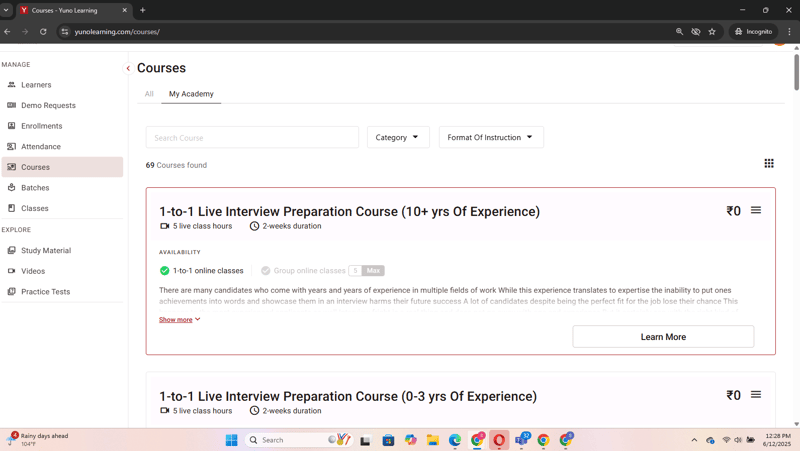
This section displays courses created specifically under your own academy. These are the courses you manage, schedule, price, and assign instructors for.
How to Access:
- Go to Courses from the left-side menu.
- Click on the My Academy tab.
Features & Filters:
| Feature | Purpose |
|---|---|
| Search Course | Quickly search within your academy’s courses |
| Category | Filter by your course categories (e.g., Interview Prep) |
| Format of Instruction | Filter by 1-to-1 or Group sessions |
Course Card Highlights
- Course Title, Live Class Hours, Duration
- Course Availability (1-to-1 / Group classes)
- Course Description
- Pricing (if applicable — free or paid)
Actions: Learn More to expand full course details
Key Uses
- Manage your academy’s active course listings.
- Add or update pricing and availability.
- Track and review your academy’s course portfolio.
- Quickly access course content for demo or marketing.
- Schedule new batches and assign instructors for your own programs.
- Monitor interest based on demo booking or enrollment trends.
Screenshot Reference:
All Courses and My Academy Courses View: