Managing your Learners
You can view your learners’ contact information, create & edit your groups and also schedule a class by using the People tab.
When you click the People tab, two submenus, namely, All and Groups, show up.
View All Learners
Under All, you see the names, email ids and phone numbers of all of your learners (in case you need to connect with any of your learners).
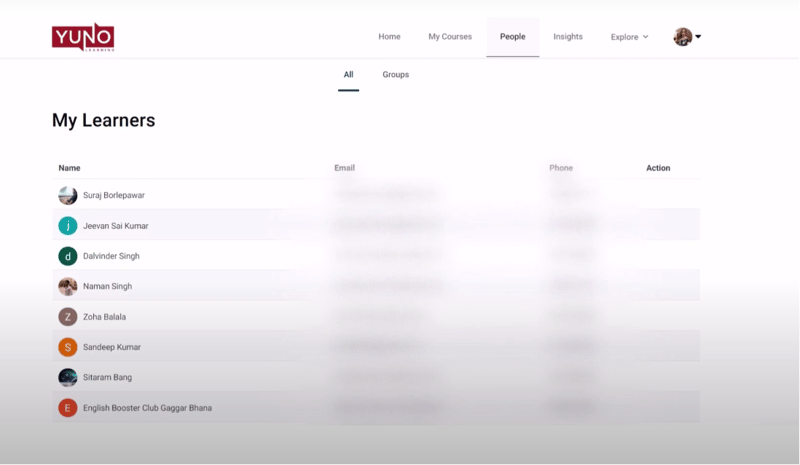
Besides, you can also schedule a class for any learner by clicking on the Schedule class button which appears for every row of learners when you hover the mouse in the Action column.
Schedule class screen appears. Fill in the details and click the Schedule button.
To know more about Scheduling a Class click here.
View Groups
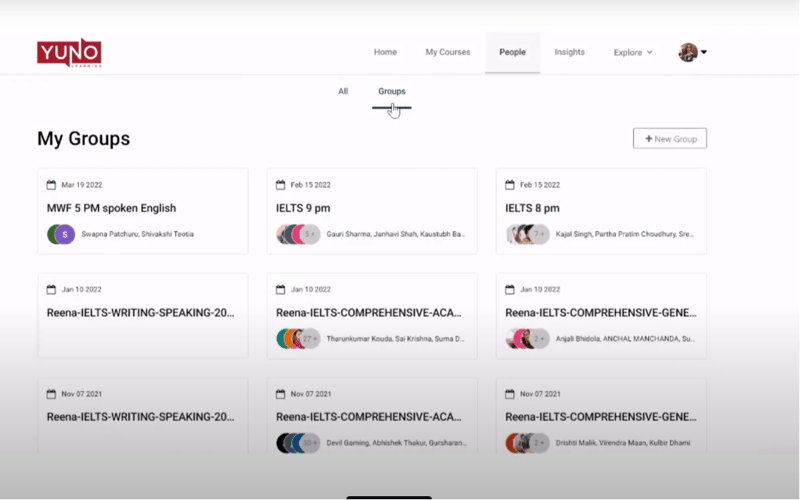
Under Groups, you’ll find all the batches that are allocated to you. A group is basically a collection of students who’ll be taking up a particular course from you. As soon as someone enrols in one of your batches, to make things easier, a group is created for that batch, anyone enrolling in that batch is also added to this group automatically.
Groups help you perform some tasks on Yuno faster. For instance, when you schedule a class, you can schedule it for an entire group instead of adding learners individually.
Create New Group
You can also create a new group of students according to their needs, levels or your preferences.
For instance, you may want to create a separate group for weaker students who may belong to different batches to clear some common doubts.
To create a new group:
- Click New Group. A pop-up will appear.
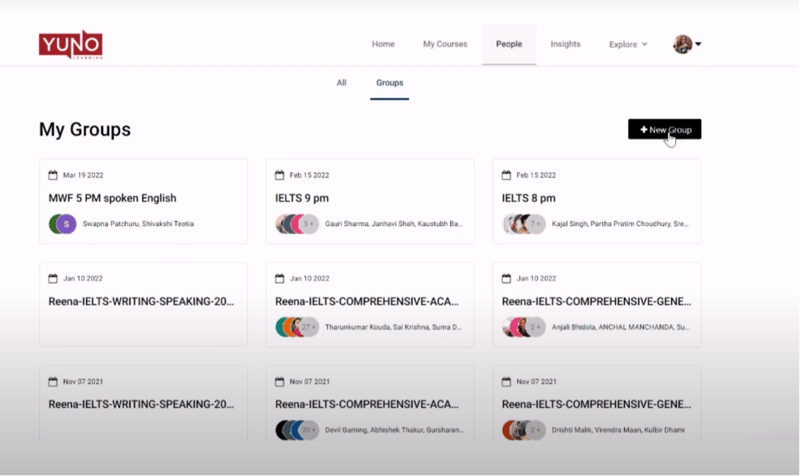
- In Group Name, enter the name you want for the new group.
- In Add Learners, enter the names of learners you want to add in the group.
- Click Add to finish the process.
Change Group Title or Name
In case you wish to change the title or name of an already existing group:
- Click on the pencil icon on the upper right corner of the group. A pop-up will appear.
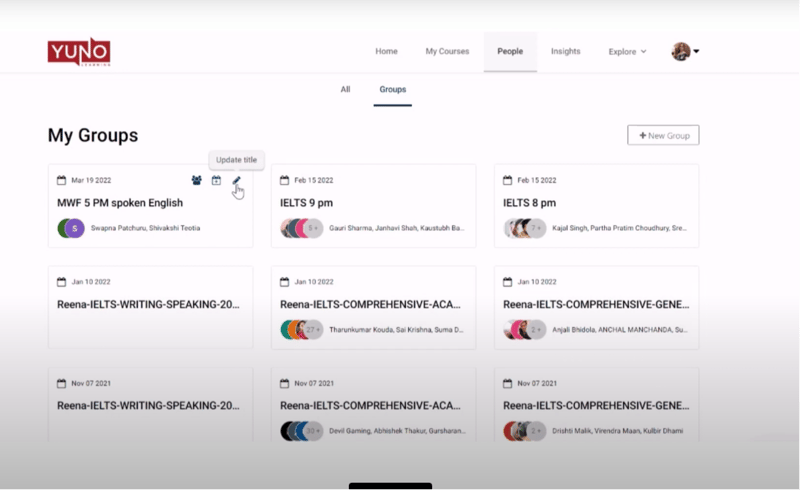
- Enter the new name in Group Name.
- Click Update
Add or Remove Learners
To add or remove learners from an already existing group:
- Click on the “Add or remove user” icon.
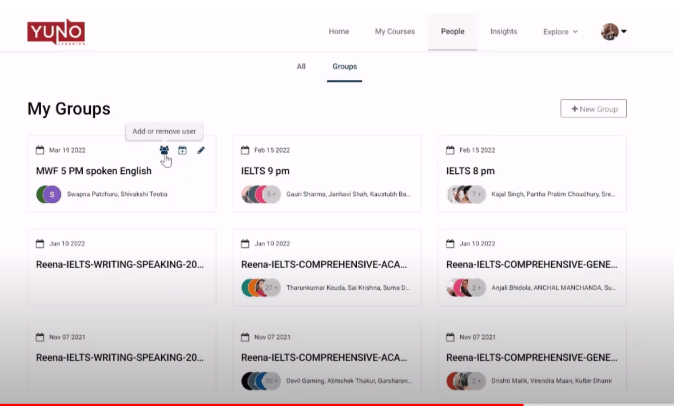
- A pop-up will appear. In Add Learners enter the names of learners you want to add.
- To remove a learner(s), click on the cross mark next to the name of the learner you want to remove.
- Click Save.
Scheduling class for a batch
- Click on the Schedule Class icon of the batch you want to schedule class for.
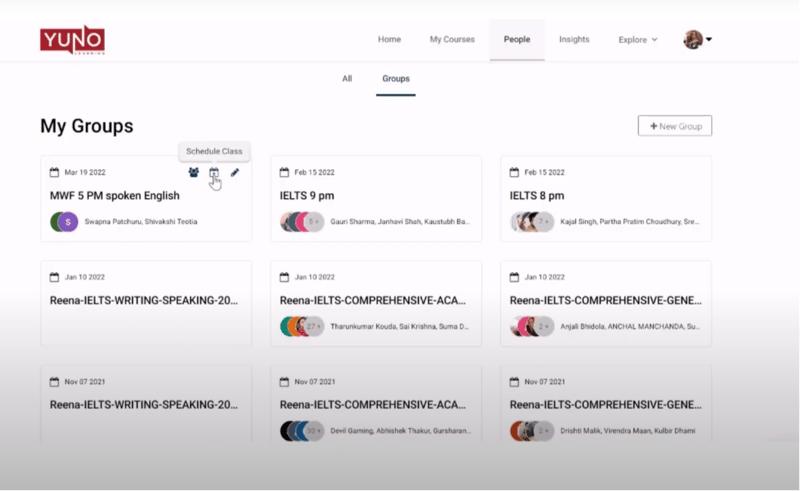
- Fill in the details in the Schedule Class screen and finally click the Schedule button.