Instructor Profile and Settings
Every Yuno Instructor account has a profile page where you can share information about yourself. It also includes several things to showcase your teaching skills, like the courses you teach, upcoming batch options for each course along with reviews and ratings from your students.
As your ratings grow, you should ask your students to share your profile with their friends. There is no marketing strategy that’s better than word-of-mouth.
How to View your Profile
You can view your profile from our website or from your Yuno Instructor account.
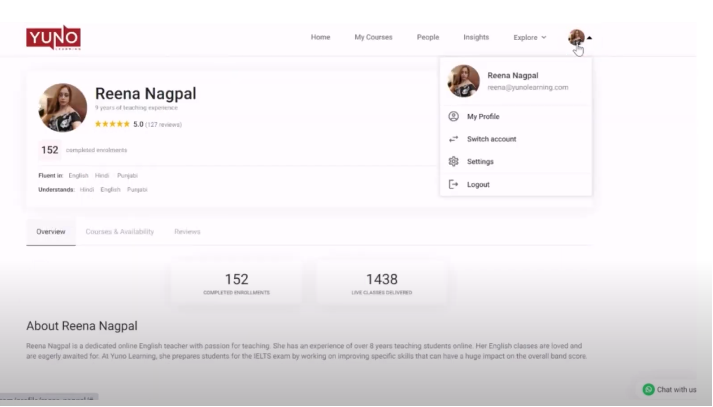
Click on your profile image in the main menu.
A drop down will appear.
Click on My Profile and your profile page will open up.
How to Edit details
About section
- Click on the menu dropdown on the top right side of your profile page (three stacked horizontal lines).
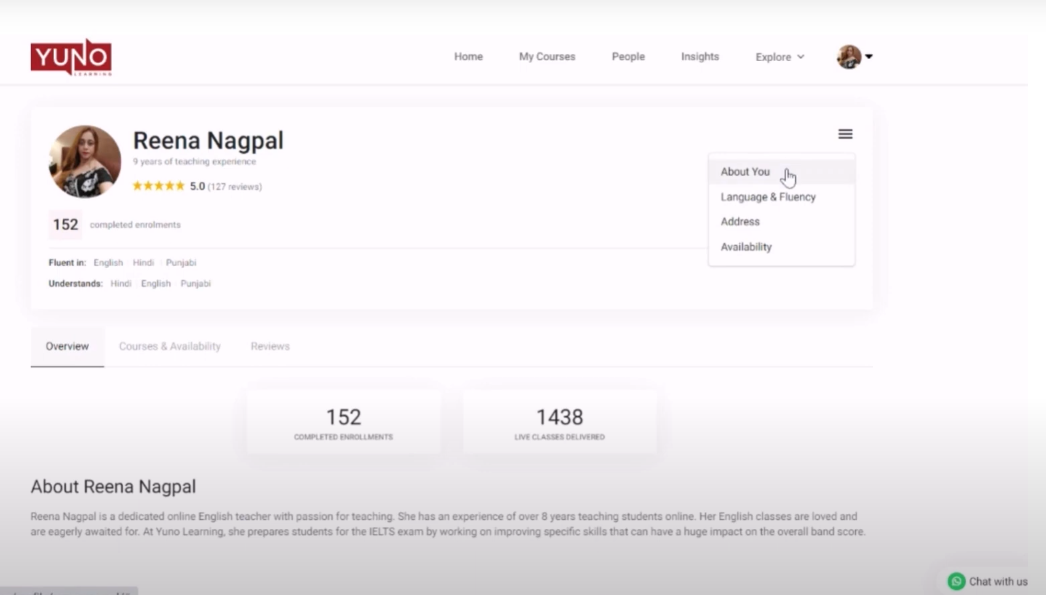
- Click About You
- A pop-up will appear where you can write (or edit) a short paragraph about yourself, your experience and accomplishments.
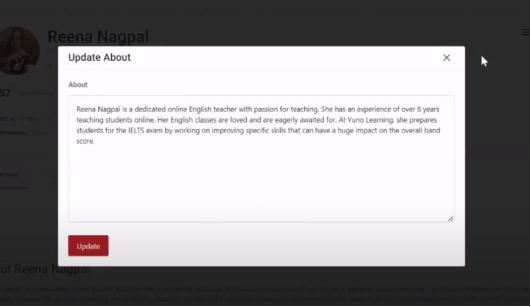
- Click on Update.
Language and Fluency
- Click on the menu dropdown on the top right side of your profile page (three stacked horizontal lines).
- Click on Language and Fluency.
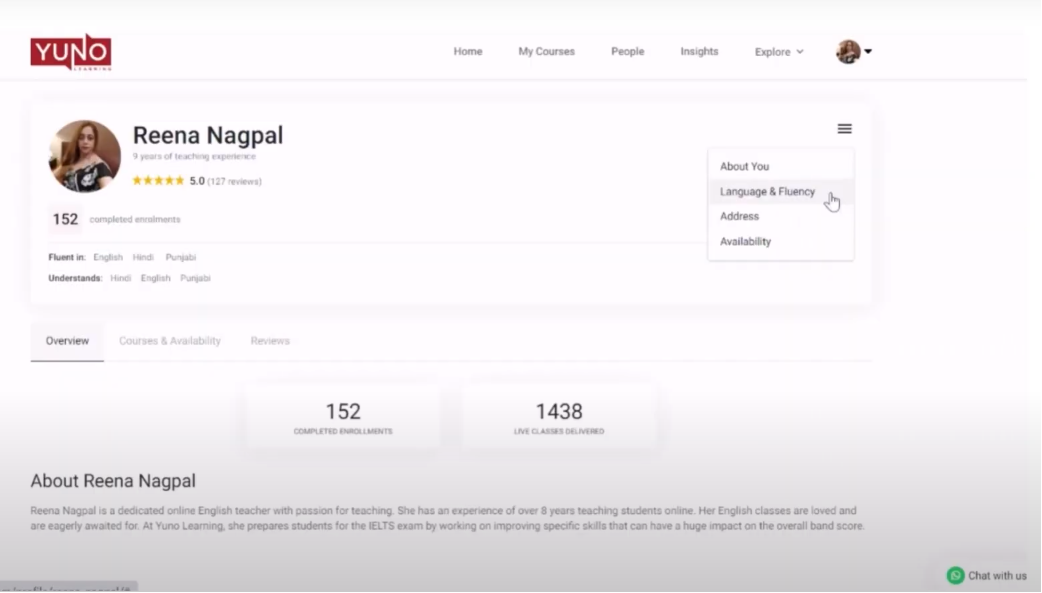
- Edit and Update the details.
Address
- Click on the menu dropdown on the top right side of your profile page (three stacked horizontal lines).
- Click Address.
- Click Add Address to add a new address. Fill in the details and click Add.
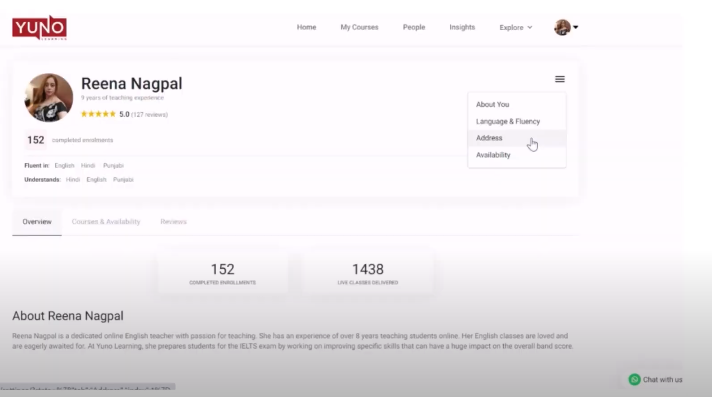
Rest of the profile details, such as your courses, batches, reviews and ratings, appear automatically.
How to Fill Availability hours
To make it easy to schedule new batches, we need to know your availability hours. Use the “Availability” feature under “Settings” to enter your work hours i.e., the hours you are already giving to Yuno Learning plus the hours you are available and wish to offer your classes on Yuno.
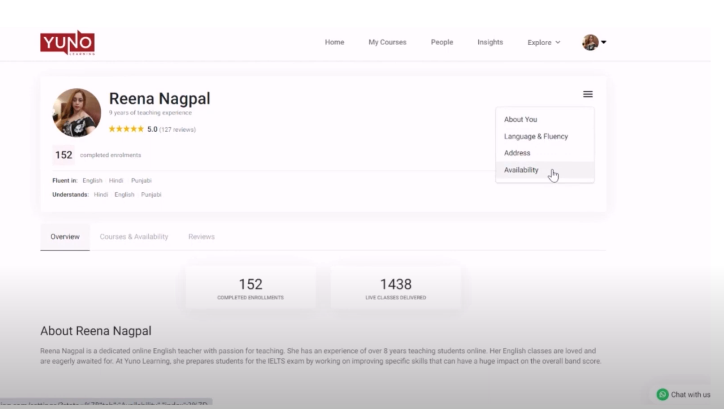
To fill in the availability hours click on your profile picture and select “Settings” from the dropdown menu. (You can also select Availability option from the menu dropdown on your profile page)
- Go to the “Availability” tab.
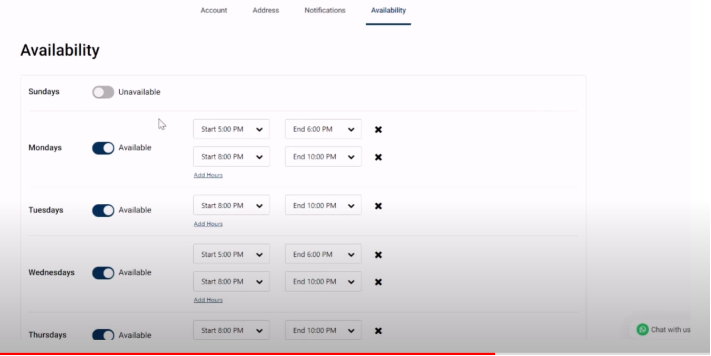
- Turn the toggle button on for the days you want to fill in hours.
- Select the start and end hours.
- If you want to add more hours click on the hyperlink “Add hours”.
- Likewise, you can set your work hours for all the days.
- Finally, click on Save.